Why the Same App Runs Great on One Android Phone and Terribly on Another — And How to Find the Right APK for Your Device
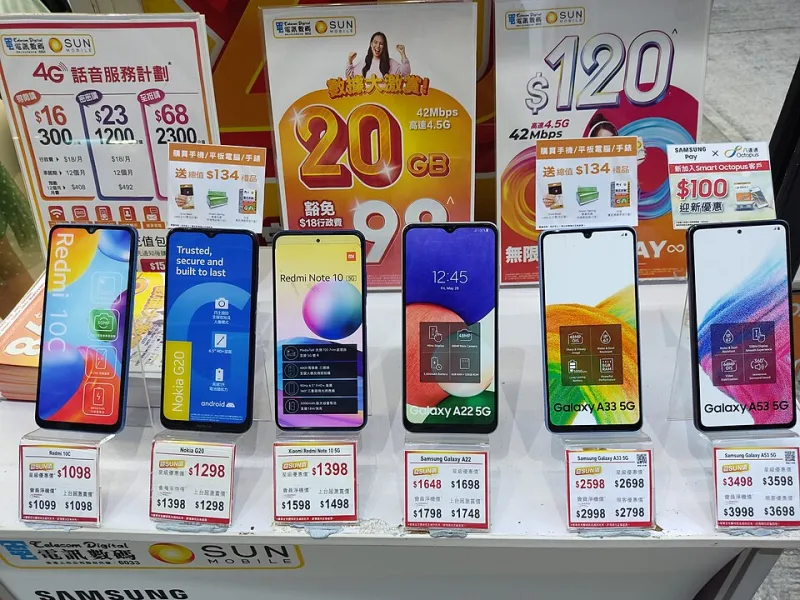
Photo: CHOADAICHONG MinuddR, CC BY-SA 4.0, via Wikimedia Commons
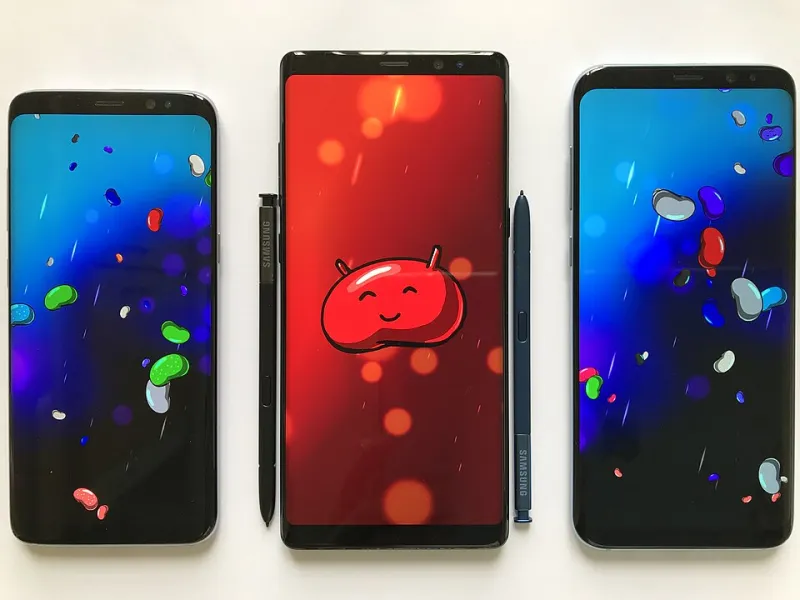
Pick up any two Android phones in the US right now and you're probably looking at two different Android versions, two different processor architectures, two different manufacturer UI skins, and possibly two entirely different sets of pre-installed system apps competing for resources. Now try to ship a single app that runs flawlessly across all of them. That's the challenge every Android developer faces — and it's the reason your experience with the same app can vary so wildly depending on what device you're holding.
This isn't a bug in the Android ecosystem. It's a feature that got out of hand. And for everyday users, understanding why it happens is the first step to fixing it.
The Fragmentation Problem, Actually Explained
As of recent data, Android devices in active use span more than half a dozen major OS versions — from Android 8 or 9 still limping along on budget and older devices, all the way up to the latest Android 14 and 15 builds running on current flagships. Google tries to push updates, but the reality is that most manufacturers — especially in the mid-range and budget segments — stop pushing Android updates after one or two years. That leaves a massive chunk of the US user base running software that's years behind the cutting edge.
On top of the OS version gap, you've got the OEM customization layer. Samsung's One UI, OnePlus's OxygenOS, Motorola's near-stock experience — they all modify Android in ways that affect how apps behave. Background process management, battery optimization aggressiveness, notification handling, default permission behaviors — all of it varies. An app that behaves perfectly on a Pixel might get aggressively killed by a Samsung's memory management, making it look broken even though the code is fine.
Then there's the hardware layer. ARM processors dominate, but there are still differences between ARMv7 (32-bit, found on older devices) and ARM64 (64-bit, current standard), plus the occasional x86 device in tablets and emulators. Apps that bundle native code — games, media processors, anything performance-intensive — need to ship separate binaries for each architecture.
How App Developers Try to Handle It
Modern Android development has a few tools for managing this chaos. The most significant is the Android App Bundle (AAB) format, which lets developers upload a single package to the Play Store that Google then splits into device-specific APKs at download time. Your phone gets only the code, resources, and language packs it actually needs — not the full monolithic package.
There's also the minSdkVersion and targetSdkVersion system baked into every app's manifest. Developers declare the minimum Android version their app supports, and the Play Store enforces it — you simply won't see an app in the Store if your OS is too old. That sounds clean, but in practice it means older devices get cut off from apps they might technically run just fine, simply because the developer bumped their minimum version during a routine update.
Conditional feature delivery, resource qualifiers, and API level checks in code all add more layers of complexity. A developer might ship one UI for phones running Android 12+ and a degraded fallback for older versions — but if that fallback logic has a bug, older device users have a consistently broken experience that never gets flagged in reviews because most reviewers are on newer hardware.
When the Play Store Isn't Giving You What You Need
Here's where APK sideloading enters the picture as a practical tool rather than a workaround for pirates.
Say you're running a 2019 mid-range phone that got stranded on Android 10. A banking app you rely on just updated its minimum SDK requirement to Android 11, and now it's simply gone from your Play Store results. The older version of that app worked perfectly on your device — there's no technical reason it can't keep running. The developer just stopped supporting it.
Or maybe you're on the opposite end: you've got a new device running a beta Android build, and an app keeps crashing because it's triggering a bug in the new OS version that hasn't been patched yet. A slightly older APK version, before the developer introduced the incompatible code, runs without a hitch.
In both scenarios, finding the right version-specific APK is a legitimate solution. A few things to keep in mind when you go hunting:
Know your device specs first. Before downloading anything, confirm your Android version (Settings → About Phone), your processor architecture (a free app like CPU-Z will tell you this clearly), and your screen density if you're dealing with resource-heavy apps. These details determine which APK variant you actually need.
Look for split APKs vs. universal APKs. If you're downloading from outside the Play Store, you'll often encounter the choice between a universal APK (one file that works on everything, but is larger) and split APKs (smaller, device-specific files that mirror what the Play Store would deliver). Universal APKs are simpler for sideloading, but split APK sets are more efficient if you're comfortable managing multiple files.
Version numbers are your friend. APK repositories typically list version codes alongside version names. The version code is a sequential integer that increases with every release — it's more reliable than the human-readable version name for understanding exactly what you're getting.
Check the APK's target and minimum SDK. Reputable APK sources will list these values in the file details. Cross-reference them with your device's Android version to confirm compatibility before you commit to a download.
OEM Modifications and Why They Matter for Compatibility
One thing that doesn't get enough attention in these conversations is how deeply manufacturer customizations can affect app behavior beyond just crashes and slowdowns.
Samsung, for instance, ships devices with its own implementation of certain system APIs. Apps that rely on precise behavior from stock Android APIs can behave unexpectedly on Samsung hardware — not because the app is buggy, but because the underlying API behaves slightly differently under One UI. This is especially common with notification channels, file picker behavior, and background location access.
Some developers actually ship Samsung-specific APK variants through the Galaxy Store that account for these differences. If you're on a Samsung device and an app feels off, it's worth checking whether a Galaxy Store version exists — it may be better optimized for your hardware than the Play Store version.
Similarly, Xiaomi and some other brands popular in the US via import modify background process management so aggressively that apps requiring persistent background connections — fitness trackers, messaging apps, anything that needs to stay alive — get killed constantly. The fix is usually in your device's battery settings, but some APK versions have been specifically patched by their developer communities to handle these environments better.
The Takeaway for Everyday Android Users
Android's fragmentation isn't going away. It's the trade-off you accept for having a device ecosystem that spans $50 budget phones all the way to $1,200 flagships. But it doesn't have to mean you're stuck with a broken experience just because your device is a couple years old or doesn't match the developer's primary test device.
Knowing your device's specs, understanding what APK variants exist, and being comfortable finding version-specific files from trustworthy sources puts you back in control. Your phone might not be the newest thing on the shelf — but with the right APK in hand, it can still run the apps you actually need.